Tournament Software Screenshots
These step-by-step screenshots show how to run a tournament or league in R2 Sports, from the first setup screen to the final results. The league software uses the same tools.
Pick a section below. Each guide shows the real screen and explains what you can do with it.

Click the screenshot to enlarge
Event Setup
Set up your event once: dates, deadlines, divisions, prices, sponsors, and your event website.
View GuidesMatch Times
Schedule every match on every court, avoid conflicts, and keep the event on time.
View GuidesEvent Setup
The setup wizard walks you through the main event settings step by step. After that, add the extras that make your event stand out, like add-on items, a home page message, and sponsors.
Click the screenshot to enlarge
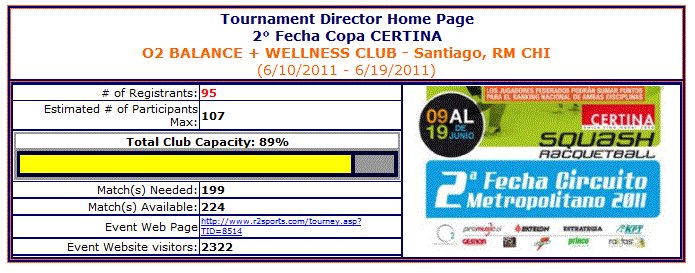
Director Home Dashboard
The director home page is the first thing you see after you log in.
View GuideEvent Setup Wizard & Templates
When you activate an event, the setup wizard walks you through the main settings: dates, times, registration deadlines, prices, and the divisions you'll offer.
View GuideEvent Options & Registration Deadlines
This setup page is where you set your event dates, daily start and end times, and registration deadlines.
View GuideDivision Settings & Entry Rules
Add divisions from a list made for your sport, then set prices and entry rules for each one.
View GuideRegistration Add-On Items
Add extra items players can buy while they register, like banquet tickets, extra shirts, or a donation.
View GuideEvent Messages & Home Page Text
Write a message for your event home page and change it any time.
View GuideParticipants
Once players register online, these tools help you keep the roster clean, check people in on game day, pair doubles partners, and let fans follow the action.
Click the screenshot to enlarge
Event Check-In List
The check-in list shows every player, whether they've checked in, and if they still owe money.
View GuideRegistration Desk Check-In
This view gives your desk staff everything they need to check a player in: entries, payments, and divisions, all on one screen.
View GuideFinding Players
Search for players by name and filter the results so you can find the right person, even in a big event.
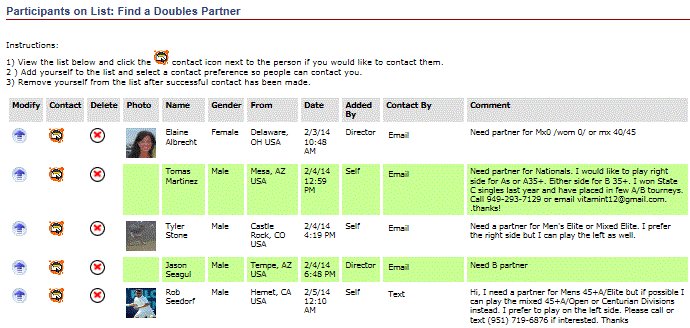
View GuidePairing Doubles Partners
Players can pick their own doubles partner when they register, or mark that they need one.
View GuideAuto-Created Event Websites
R2 Sports builds your event website automatically as you go through setup.
View GuideBrackets
Pick a format for each division, seed the players, and let R2 Sports build the draw. Winners move forward on their own as scores are entered.
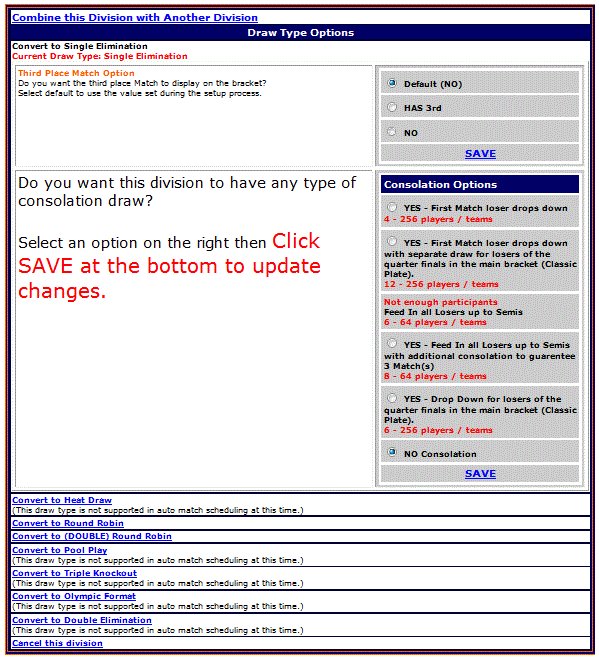
Click the screenshot to enlarge
Bracket Format Settings
Choose a bracket format for each division, like single or double elimination, round robin, or pool play.
View GuideSeeding Brackets & Creating Draws
Enter each player's seed and click Update Seeding, and R2 Sports builds the draw.
View GuideBracket List & Division Directory
The bracket list shows every division in your event with its format and number of players.
View GuidePrinting Brackets & Desk Sheets
Print brackets and round robin sheets for your desk and walls.
View GuideMatch Times
Set times one match at a time or let the auto scheduler do it. R2 Sports watches for players booked in two places at once and flags the problem before it happens.
Click the screenshot to enlarge
Time Grid Planner
The time grid shows every match by court and time for one location and day.
View GuideMatch Time Settings
The View and Set Times page lists every match in your event and shows how many still need a time.
View GuideMatch Scheduler
The tournament scheduler is where you control all match times in your event.
View GuideSetting Match Times
Pick matches from a bracket or the grid and set their times on one screen.
View GuideFixing Schedule Conflicts
When players enter more than one division, scheduling gets tricky.
View GuidePlayer Time Requests
Players can type time requests when they register, like "Can't play before 2 PM Friday." You decide which to grant.
View GuideMatch Report
The match report lets you search matches across your event, set times for many at once, and print scorecards.
View GuideResults
When the last match ends, turn results on to publish a summary of every division. Then use the media report and event stats for press, sponsors, and next year's planning.
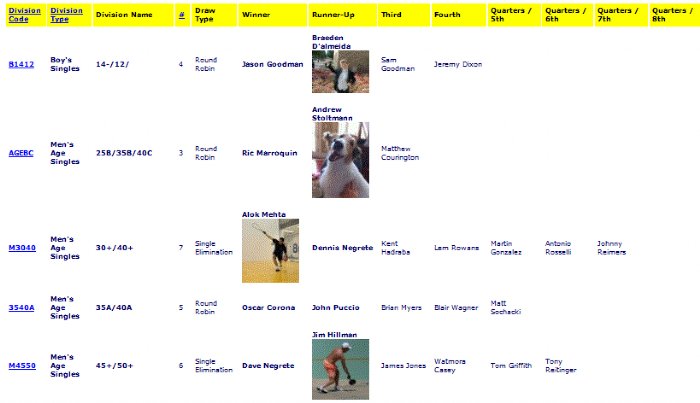
Click the screenshot to enlarge
Media Match Report
The media report lets players, fans, and press look up matches and results in different ways during and after the event.
View GuideTournament Statistics
Event stats show who signed up and how, with charts that make it easy to compare to past events.
View Guide