Instructional Manual: Tournament Planner
Tournament Planner: Time Grid & Live Match Control
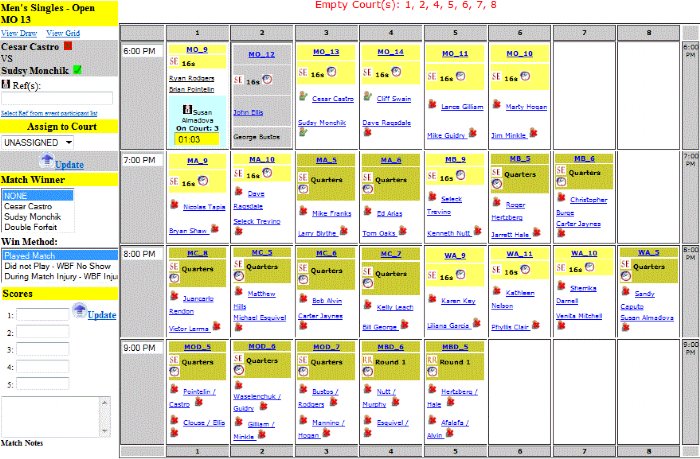
The Tournament Planner time grid is a match schedule automatically generated as you set times. It lists all scheduled matches at a specific location for any given day. Each location/day has its own grid, selectable from the Tournament Scheduler section.
Grid Configuration & Layout
- Grid Orientation: Courts/fields are listed across the top, with game times proceeding down each row. Adjust start times, end times, and time increments in your Tournament Template setup.
- Time Slot Data: Scheduled slots display:
- Division code (linked to the bracket).
- Bracket format and match round.
- Top-half color coding by round.
- A clock icon for rapid rescheduling.
Live Event Management
- Status Indicators: During live play, assigned matches show a running timer and a light-blue background (bottom half). Referee names are displayed if assigned. Finished matches are grayed out.
- Check-in Tracking: Player/team names are listed with a Green Check or Red X icon. Click these icons to toggle check-in status.
Match Information & Updating
Click a linked participant name to open the Match Information sidebar. This is your primary hub for live match control:
- Registration Check: Displays if the participant has checked into the tournament (distinct from match check-in). Always verify registration status before beginning the match.
- Court & Winner Updates: Use the "Assign to Court" dropdown to change court assignments. Update winners or select "Double Forfeit" if a match cannot be played.
- Win Methods (Critical for Rankings):
- Played Match: Default status for a complete game.
- Did Not Play – WBF No Show: Used if a competitor never shows (match not counted for rankings).
- During Match Injury – WBF Injury: Used if a player quits mid-match (match counts for rankings).