Instructional Guide: Draw & Schedule Management
Tournament Draws: Timing & Match Progression
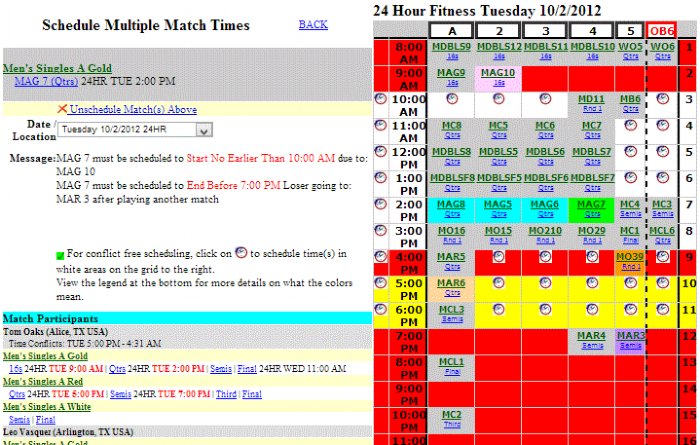
Setting times for league and tournament draws is streamlined because all relevant match information is centralized. The system utilizes color-coded indicators based on a division's earlier/later rounds and potential conflicts for participants playing in multiple divisions.
Managing Match Selection & Scheduling
- Interface Controls: Use the clock icons next to each match in the bracket view to begin scheduling. If you select multiple matches but there are fewer time slots available, the scheduler automatically pushes excess matches to the next available slot.
- The Planner Grid: This view lists all scheduled matches at a specific location. The division code abbreviation and match number (linked to the full tournament draw) allow for quick verification. The round name is also a live link to reset a match time.
- Unscheduled/Rescheduling: To unschedule, click the "Unschedule Match(s)" link and confirm. To set a new time, select a date/location to load the grid, then click the clock icon inside your desired slot.
Understanding Conflict Color Codes
The grid simplifies scheduling through a universal color-coding system. Always schedule on white rows to stay conflict-free.
- White Rows: No conflicts—the safest slots for scheduling.
- Red Background: Indicates a hard conflict or time period where matches cannot be scheduled (e.g., a required prior round has not concluded, or a hard cutoff time has been reached).
- Orange Background: Indicates potential participant conflicts in later rounds if a player wins or loses. The system allows an override, but flags it for director review.
- Yellow Background: Indicates a personal time conflict requested by a participant during registration. Directors can override this if necessary.
- Light Blue: Matches scheduled in the same round that do not conflict with the current selection.
Below the grid, the system lists all possible match participants and their potential advancement path. If a player has a personal conflict, it is listed next to their name. Use the green linked division name to view the bracket or the blue linked round name to adjust a specific game's timing.